Category:
 Author:
 Date:Jul 10, 2026
How to Find Your MT4/MT5 Investor Password on Android
The fastest way to find your investor password on Android is inside the app: tap the menu icon (three lines, top left), tap Mailbox, and open the message titled Registration (usually the first mail you received). If the message is not there, check your broker welcome email or your broker client area, or set a new investor password from the account settings. This guide walks through all four methods with the exact taps. The steps are identical in the MT4 and MT5 apps, so everything below applies to both.
On a computer instead? Follow the desktop guide for MT4 or for MT5, where the steps match the Windows and Mac platform. There is also an iPhone iOS guide available.
One thing to know before you start: the app never displays an existing investor password in its settings. You can only read it where your broker originally issued it, or replace it with a new one. That is why the four methods below are ordered from fastest to fallback.
What is the investor password in MT4/MT5?
Every MT4/MT5 trading account supports two passwords. The master password (also called the main or trading password) gives full access: it can place, modify, and close trades. The investor password gives read-only access: anyone logging in with it can see the balance, open positions, and full trade history, but the server blocks every trading action.
The investor password exists so you can share your trading results without handing over control. It is what fund managers give their clients, what prop firm traders use to share verified track records, and what analytics tools ask for when they connect to your account. TradeMedic™ AI connects with the investor password only, which means it can read your trade history to analyze your behavioral patterns but can never place a trade.
One detail that trips up many traders: not every broker creates an investor password automatically. Some issue it together with your login at account opening. Others leave it empty until you set one yourself. If the first three methods below come up empty, that is usually why, and method four solves it in under a minute.
Method 1: Check the Mailbox in the app
When a broker creates your account, its server usually sends a registration message directly into the platform. This message contains your login number, server name, master password, and investor password. It stays in the platform mailbox even if you deleted the welcome email years ago, which makes this the single most reliable place to look.
Open the MT4 or MT5 app and log in to your account.
Tap the menu icon (three lines) in the top left corner.
Tap Mailbox.
Open the message titled Registration or New Account Registration.
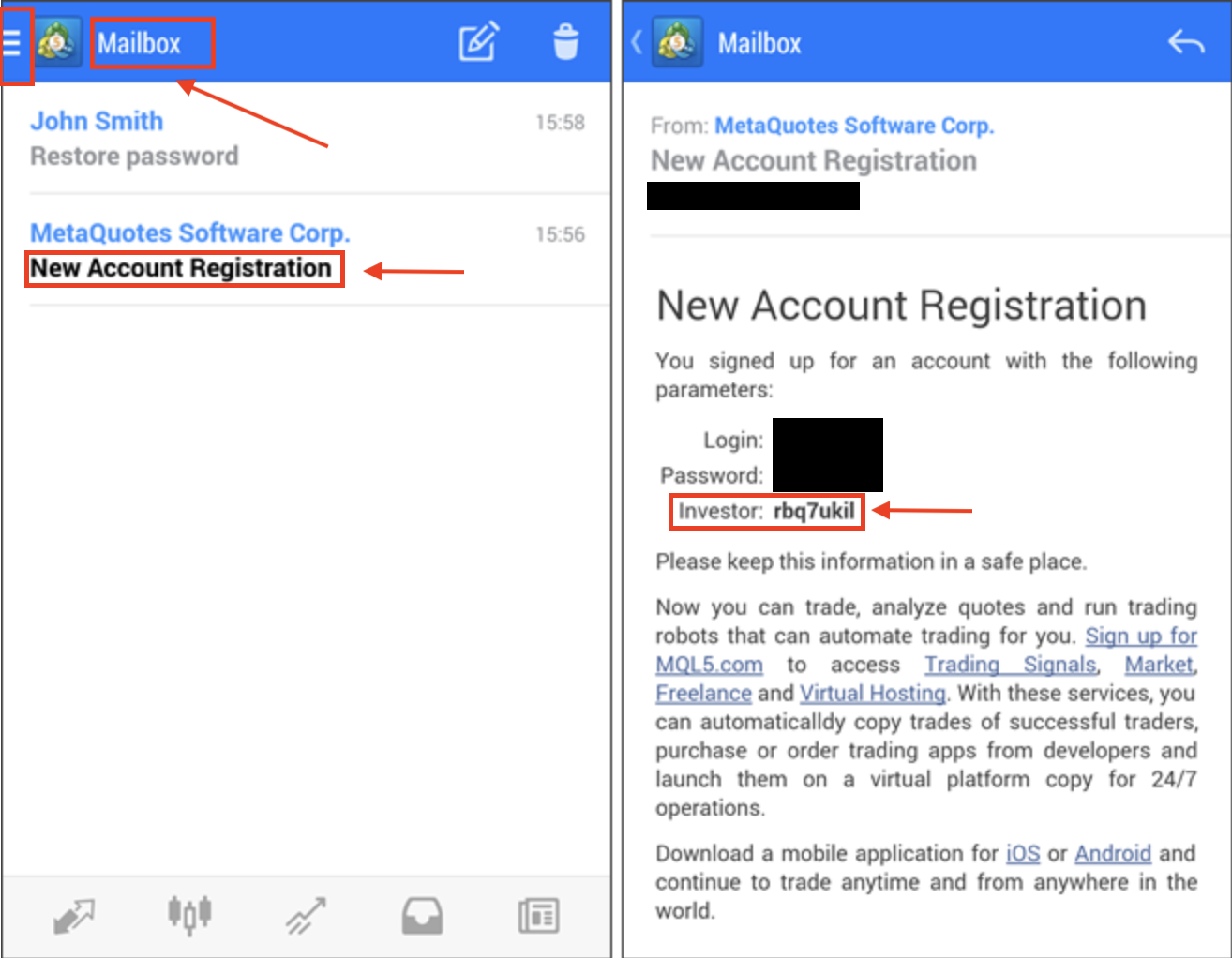 MT4 MT5 Investor password find mailbox Android
The message lists your login, server, master password, and investor password. If you see several registration messages, match the Login number to the account you want to connect.
If there is no registration message, your broker either did not send credentials into the platform or did not generate an investor password at all. Move to the next method.
Method 2: Check your broker welcome email
Most brokers send account credentials by email when the account is opened. Search your inbox for the broker name combined with terms like “account details”, “login”, “MT4/MT5”, or “welcome”. The email typically lists the login number, server name, and both passwords. Check the exact account number if you hold more than one account with the same broker.
For prop firm accounts, this email usually arrives right after you purchase a challenge or receive a funded account, and the investor password is often listed there under a name like “read-only password” or “investor access”.
Method 3: Check your broker client area
Log in to your broker’s client portal in your phone browser and open the section that lists your trading accounts. Many brokers display the investor password there, or offer a button to reveal or reset it, without opening MT4/MT5 at all. Prop firms almost always show account credentials in the trader dashboard next to each account.
This method is a reliable fallback on any phone, because it does not depend on the app version you have installed.
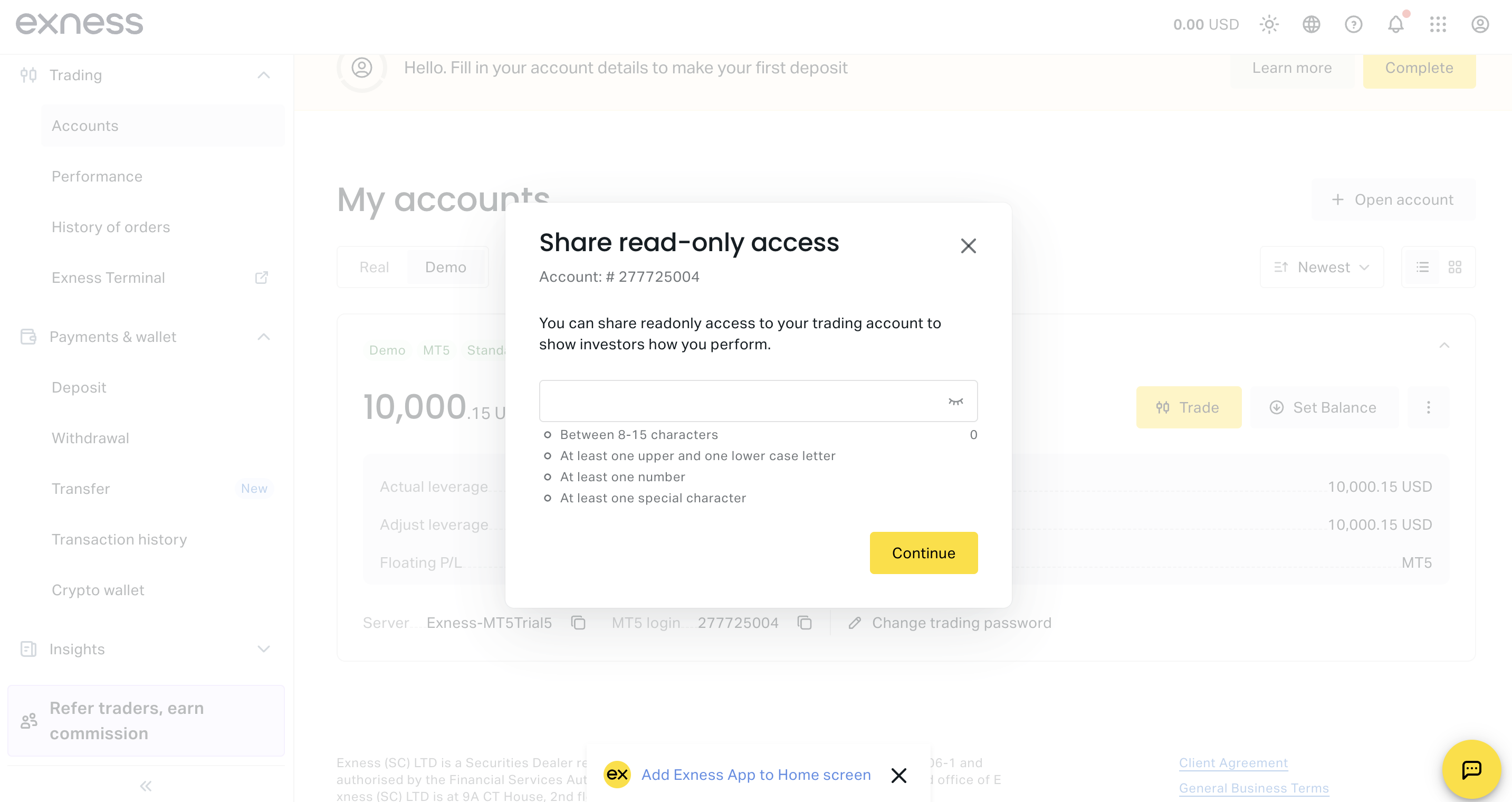
Method 4: Set a new investor password in the app
If the password was never issued or cannot be found, set a fresh one. This requires your master password, the one you normally use to log in and trade. Setting a new investor password does not affect the master password or any open positions.
Tap the menu icon (three lines) and go to Manage Accounts.
Tap the account you want to update, or its three-dot menu, and choose Change password.
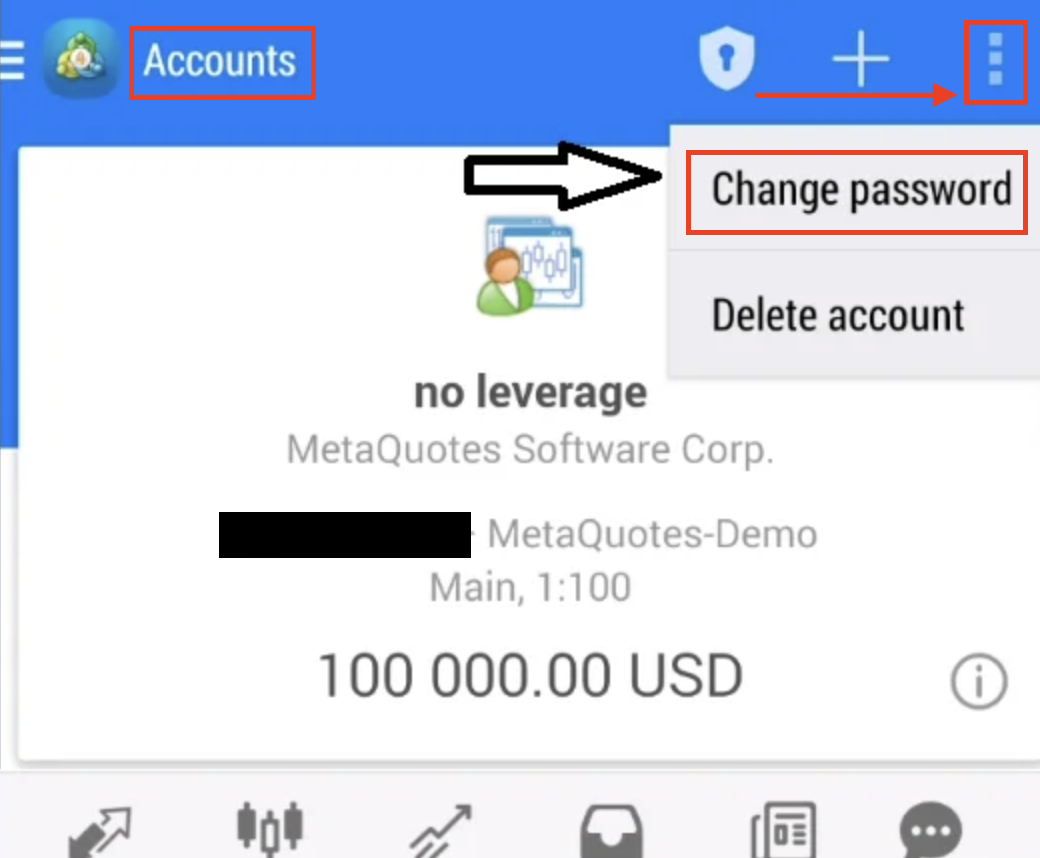 Set new investor password Android MT4 MT5
Select Change investor (read-only) password.
Enter your master password, then the new investor password twice.
Confirm. The new investor password is active immediately. Menu names can shift slightly between app versions, and some brokers restrict investor password changes to the desktop platform or their client portal. If the option is missing or the app returns an error, use method three in your phone browser, or the desktop steps in the MT4 or MT5 desktop guide.
Is it safe to share your MT4/MT5 investor password?
Yes, within its purpose. The read-only restriction is enforced by the broker’s server, not by the app on the other side. Whoever holds the investor password can watch the account but cannot open, modify, or close a single trade, and cannot touch settings or funds. To let a person or tool view your account, share three things: the login number, the server name, and the investor password. Never share the master password with anyone.
Two sensible habits: change the investor password from time to time if you share it often, and treat it like any credential rather than posting it publicly. Read-only still means anyone with it can see your full trading history.
This server-side restriction is exactly why TradeMedic™ AI asks for the investor password and nothing more. The connection can read your trade history to detect your behavioral patterns across 60+ dimensions, and it is technically unable to trade on your account. You can read more about how the analysis works on the TradeMedic™ page, or connect your account free in a few minutes here.
Frequently Asked Questions
Can someone place trades with my MT4 or MT5 investor password?
No. The investor password gives read-only access enforced by the broker’s server. Trading, withdrawals, and settings changes are blocked regardless of which device or app is used to log in.
Are the steps different between the MT4 and MT5 apps on Android?
No. Both apps come from the same publisher and use the same menus for the Mailbox and the password settings on Android. Every step in this guide applies to both.
The change password option is missing in my app. What should I do?
Some brokers restrict investor password changes to the desktop platform or their client portal, and menu names can shift between app versions. Use your broker client area in the phone browser, or the desktop platform, as a fallback.
My broker never sent me an investor password. What should I do?
Some brokers do not generate an investor password automatically. Set one yourself in the app using method four above, and confirm the change with your master password. It takes under a minute.
What is the difference between the master password and the investor password?
The master password gives full control of the account, including placing and closing trades. The investor password gives view-only access to the balance, positions, and history. They are independent: changing one does not affect the other.
My investor password is not working when I connect to a tool. What is wrong?
The three most common causes: the login number or server name does not match the account, the password was changed at some point and the old one is being used, or the master password was entered by mistake in a field expecting the investor password. If in doubt, set a fresh investor password and reconnect with it.
Connect your account with read-only access
Once you have your investor password, connecting your MT4 or MT5 account to TradeMedic™ AI takes a few minutes: enter your login number, server, and investor password, and the analysis of your trading behavior across 60+ patterns starts on data the connection can only read, never trade on.
Learn how the analysis works here.
Connect your account free here.